Your Link Preview Looks Broken Everywhere. The 10-Minute Open Graph Fix
October 24, 2026
If your shared link shows only a bare URL, a blank grey box, or the wrong image, add complete Open Graph and Twitter Card meta tags to the page head, then clear the platform cache and test the URL again.
You can build and launch a landing page in an afternoon with an AI-assisted builder, no-code platform, or vibe-coding tool. Then you paste the link into Slack, iMessage, WhatsApp, LinkedIn, X, or Discord.
Instead of a polished preview, you get this:
- No page title
- No description
- No image
- An unknown brand
- A plain URL that looks unfinished
The builder created the visible page. It often did not create the social preview metadata.
Why your link preview is blank
Social platforms and messaging apps look for specific meta tags in the <head> section of your page.
The most important tags are:
og:titleog:descriptionog:imageog:urltwitter:cardtwitter:titletwitter:descriptiontwitter:image
Open Graph tags control how your page is represented across many social networks, messaging apps, and link preview systems. Twitter Card tags give X a specific card format and provide fallback information when required.
The Open Graph protocol defines core properties such as og:title, og:type, og:image, and og:url. For most landing pages, include og:description as well.
Use these content limits:
| Element | Recommended limit or size |
|---|---|
| Title tag | 50 to 60 characters |
| Meta description | 150 to 160 characters |
| Open Graph image | 1200 by 630 pixels |
| Twitter card | summary_large_image |
❌ Missing tags vs ✅ complete tags
| Page setup | What people see | Likely result |
|---|---|---|
| ❌ No OG tags | Bare link, unknown brand, no image | Low trust and fewer clicks |
| ❌ Title only | A title with a generic or missing image | Inconsistent preview |
| ✅ Complete OG tags | Rich card, brand name, clear description | Higher click potential |
| ✅ OG plus Twitter Card tags | Consistent previews across platforms | Better sharing and recognition |
A link preview is not a minor design detail. It is often the first impression of your product after someone recommends it.
The AEO connection: metadata gives machines a clear label
Open Graph tags mainly control sharing previews, not traditional Google rankings. However, they still support broader answer engine optimization and AI search optimization.
Answer engines and assistants can read the same page metadata that social platforms use to label and describe your content. A page with no Open Graph title, no description, and no image gives ChatGPT, Perplexity, and Google AI Overviews a blank business card to work from.
That does not guarantee a citation by itself. Your content, authority, structure, and relevance still matter. But clear metadata improves entity clarity.
Your page should make these facts obvious:
- What is this page?
- Which brand published it?
- What does the page offer?
- Which URL represents the canonical version?
- What image represents the business?
Entity clarity starts in the head of the page. It is one small part of an effective AEO audit and a complete website SEO audit.
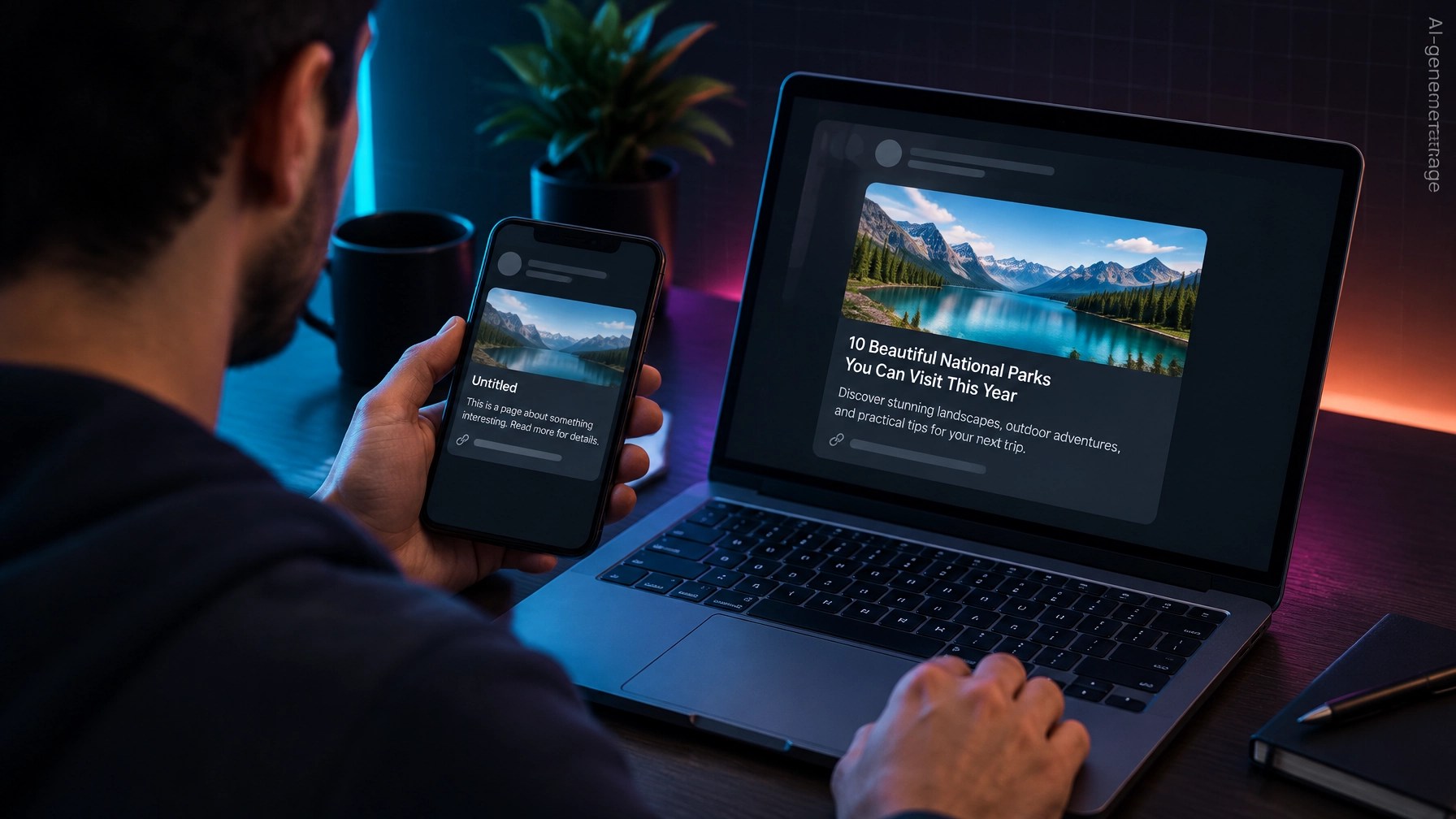
The 10-minute Open Graph fix
1. Match the page title to the offer
Write one specific title for the page.
Keep the title tag between 50 and 60 characters. Your og:title and twitter:title can use the same wording.
Avoid vague titles:
Welcome to Our Website
Use a title that identifies the offer and audience:
Free SEO and AEO Audit for Small Business Websites
The title should make sense in Google, a Slack preview, a LinkedIn post, and an AI-generated citation.
2. Include a useful description
Write a meta description between 150 and 160 characters. Reuse a shortened version for og:description and twitter:description.
Explain the page benefit directly. Do not fill the description with keywords.
Example:
Check your website SEO and AI search readiness with a free audit. Get a full report, practical fixes, and no signup or email required.
A good description answers the question, “Why should I click this link?”
3. Set the image to 1200 by 630 pixels
Create one clear image at 1200 by 630 pixels.
Use:
- A simple product or brand image
- Strong contrast
- One main subject
- Readable text at thumbnail size
- Safe margins around the edges
Avoid:
- Tiny text
- Several competing messages
- A screenshot of a dense dashboard
- A logo that fills the entire image
- An image that only works in a square crop
Use an absolute public image URL. The image must load without a login, cookie wall, or blocked crawler.
4. Generate and paste the tags
For a non-developer, the fastest route is the free Meta Tag Generator. Enter your title, description, page URL, and 1200 by 630 image URL.
The generator provides:
- Title and description fields
- Open Graph tags
- Twitter Card tags
- A live Google preview
- Copy-ready code
Your output should look similar to this:
<title>Free SEO and AEO Audit for Small Business Websites</title>
<meta name="description" content="Check your website SEO and AI search readiness with a free audit. Get a full report, practical fixes, and no signup or email required." />

<meta property="og:title" content="Free SEO and AEO Audit for Small Business Websites" />
<meta property="og:description" content="Check your website SEO and AI search readiness with a free audit. Get a full report, practical fixes, and no signup or email required." />
<meta property="og:image" content="https://example.com/images/seo-audit-preview.jpg" />
<meta property="og:url" content="https://example.com/free-audit" />
<meta property="og:type" content="website" />

<meta name="twitter:card" content="summary_large_image" />
<meta name="twitter:title" content="Free SEO and AEO Audit for Small Business Websites" />
<meta name="twitter:description" content="Check your website SEO and AI search readiness with a free audit. Get a full report, practical fixes, and no signup or email required." />
<meta name="twitter:image" content="https://example.com/images/seo-audit-preview.jpg" />
Paste the code inside the <head> section.
If you use Framer, Webflow, Wix, Squarespace, WordPress, Shopify, or another builder, look for a panel named:
- SEO settings
- Social sharing image
- Open Graph
- Social preview
- Custom code
- Head code
Do not paste the tags into the visible page editor. They belong in the page settings or document head.
5. Re-test after clearing the cache
Paste the page URL into a chat app or preview checker. Check the title, description, image, and brand name.
If the old preview still appears:
- Confirm the tags exist in the live page source, not only in your builder preview.
- Confirm the image URL is public and loads in a private browser window.
- Confirm the image is 1200 by 630 pixels.
- Use the LinkedIn Post Inspector to request a fresh crawl.
- Use the Facebook Sharing Debugger if the link is shared through Meta platforms.
- Remove the old message and paste the link into a new conversation.
- Wait several minutes, and sometimes longer, for the platform cache to refresh.
Do not assume the fix failed because one old preview still shows the previous version. Link previews are cached independently by each platform.
A quick check before every launch
Use this five-question checklist:
- ✅ Does the page have a specific title between 50 and 60 characters?
- ✅ Does the description explain the benefit in 150 to 160 characters?
- ✅ Is the Open Graph image 1200 by 630 pixels?
- ✅ Is
twitter:cardset tosummary_large_image? - ✅ Did you test the live URL after publishing?
This is a small technical SEO task with an immediate practical benefit. It can improve how your launch looks when a customer, partner, or friend shares it.
It also helps your broader digital marketing analytics because consistent previews make shared traffic easier to recognize and interpret. A vague preview can reduce clicks before visitors ever reach your analytics report.
FAQ
Do Open Graph tags help SEO?
Open Graph tags are primarily for link previews, not a direct traditional SEO ranking factor. They can improve how your page appears when shared, which may increase qualified visits, brand recognition, and referral traffic. Keep optimizing the main title tag, content, internal links, technical SEO, and other SEO ranking factors as well.
Do AI search engines read Open Graph tags?
Answer engines and AI assistants can read Open Graph metadata when they crawl a page, although each system processes information differently. Complete tags give systems a clear title, description, image, URL, and brand context. For stronger AI search optimization, also improve answer structure, entity clarity, structured data, content depth, and citation-worthy information.
Why does my link preview still look old after I fixed it?
The platform probably cached the previous version. Check the live source, confirm that the image URL works publicly, run the URL through a link preview debugger, and paste the link into a new message. You may need to wait while Slack, LinkedIn, WhatsApp, Discord, or another service refreshes its stored preview.
Final launch check
Fast website builders help solo founders ship quickly, but speed can leave behind missing meta tags, broken schema, blocked crawlers, or hidden security vulnerabilities. Check the page before sending it to customers.
Smart Analytics provides a free Meta Tag Generator, free SEO and AEO analyzer for a full website SEO audit with no login and no email, plus free Schema Markup, Robots.txt, and llms.txt generators and a Search Console Regex Library. The separate Vulnerability Check produces a security score, downloadable PDF report, and custom AI Fix Prompt. Specific vulnerability findings stay private in the PDF.
Everything is free. There is no paywall, no signup, and no email requirement. You get the full report every time.
Want to see how your site scores?
Run Free Audit →Get our insights in your Google feed
Follow Smart Analytics and see our latest tips highlighted in Google Search and AI Overviews.