Your Backup File Is Public. Hackers Find It Before Google Does
October 2, 2026
A founder once told me, “The site is live, so I am done.”
Then we found a database export sitting in the public web folder.
It was not linked from the homepage. It did not appear in the navigation. It was not part of the sitemap. It was simply named site.sql, uploaded during a rushed launch, and available to anyone who guessed the URL.
That is enough.
A public backup can expose database passwords, API keys, admin accounts, customer records, source code, and private configuration. Attackers scan for common filenames constantly. They do not need to wait for Google to index the file.
If you built your site quickly with a no-code platform, one-click host, WordPress installer, or AI-assisted coding tool, run this check today.
The security problem is simple
Any file inside your public web root may be available over HTTP.
Common public web roots include:
public/public_html/htdocs//var/www/html/- A hosting platform’s deployment folder
Common exposed files include:
/backup.zip/site.zip/site.sql/database.sql/wp-config.php.bak/.env.bak/config.php.old/export//backups//old/
A backup file does not need to be linked to be discovered. Attackers use automated scanners and common filename lists. Search engines may also crawl it if they find a link, directory listing, sitemap reference, or external mention.
What an exposed backup may contain
- Database usernames and passwords
- API keys and access tokens
- SMTP credentials
- Admin session secrets
- Authentication salts
- Customer emails and account data
- Private source code
- Unpatched plugins or dependencies
- Internal URLs and deployment details
Treat a publicly accessible backup as a credential leak, not as a minor SEO warning.
❌ The wrong assumption versus ✅ the safe approach
| ❌ Common assumption | ✅ Safer approach |
|---|---|
| “Nobody knows the filename.” | Assume common filenames are scanned automatically. |
| “It is not linked, so it is private.” | Test the direct URL and inspect server access. |
| “Robots.txt blocks hackers.” | Remove the file or deny access at the server level. |
| “The file is old, so the password is irrelevant.” | Rotate every credential found inside it. |
| “I deleted it, so the problem is over.” | Check cache, indexes, logs, keys, passwords, and reverify. |
| “My SEO audit looks fine.” | Run a separate website security check as well. |
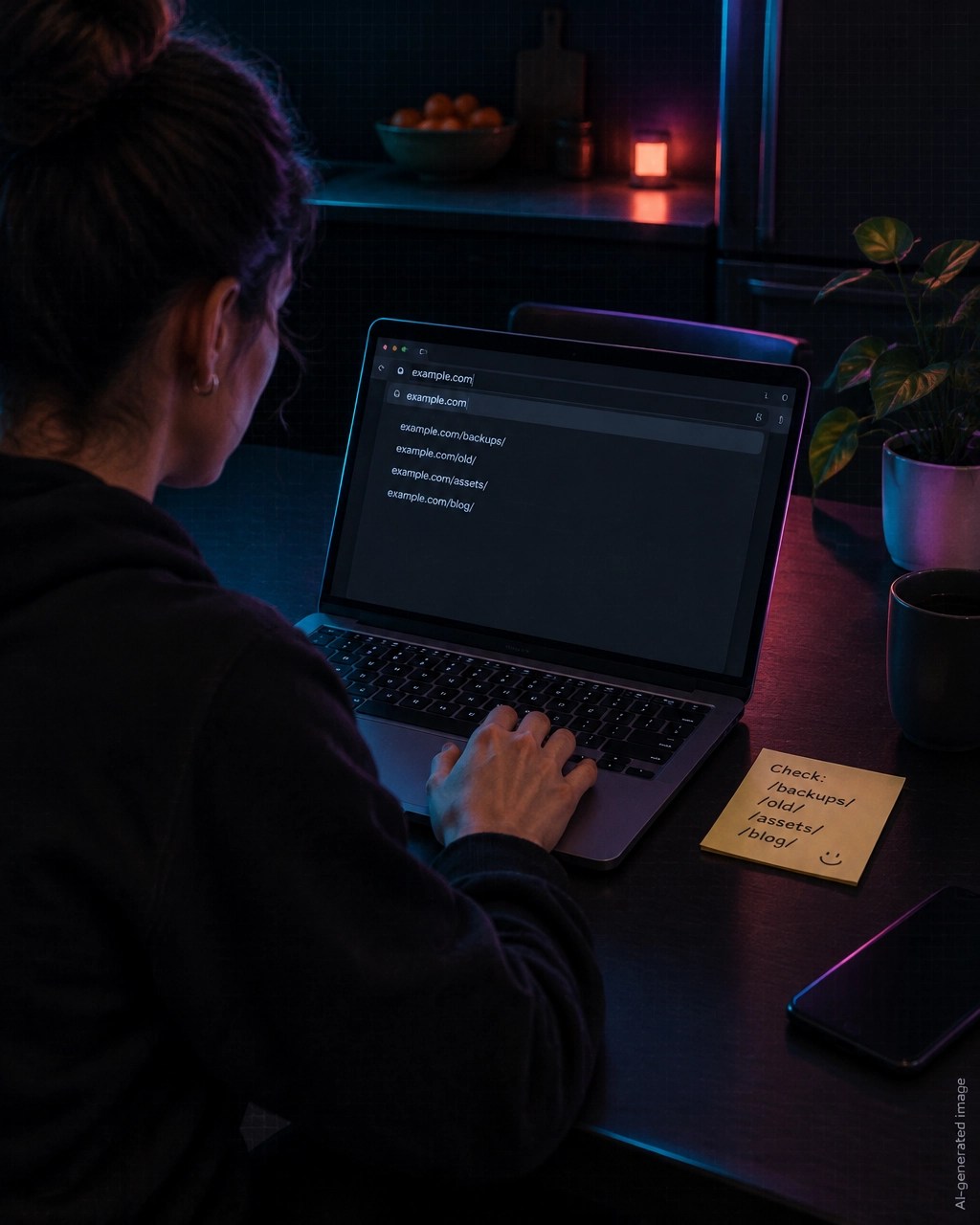
The 10-minute public backup check
Only test websites and systems you own or are authorized to assess.
1. Check the usual paths
Open your domain with these paths added:
https://example.com/backup.zip
https://example.com/site.zip
https://example.com/site.sql
https://example.com/database.sql
https://example.com/wp-config.php.bak
https://example.com/.env.bak
https://example.com/backups/
https://example.com/old/
https://example.com/export/
Also check filename variations:
backup-2026.zip
website-backup.zip
db.sql
dump.sql.gz
config.php.old
wp-config.php.save
Do not assume a random filename is safe. Launch tools, editors, plugins, and hosting panels often create predictable copies.
2. Confirm what is exposed
A file is exposed if the URL returns the actual file or a directory listing.
Look for:
200 OK- A file download
- Readable SQL or configuration text
- A directory listing
- A response that contains credentials
- A
Content-Typematching the file
A 403 Forbidden response is better than 200 OK, but do not stop there. Confirm the file is not available through another hostname, cached URL, alternate extension, or backup directory.
You can use a browser for a basic check. If you are comfortable with the command line, use:
curl -I https://example.com/backup.zip
curl -I https://example.com/site.sql
curl -I https://example.com/wp-config.php.bak
The goal is not to download sensitive content. The goal is to confirm whether the server allows public access.
3. Check your hosting file manager
Search the actual production folder for:
*.zip
*.sql
*.sql.gz
*.bak
*.old
*.backup
*.dump
*.tar.gz
*.env*
*~
Check for copied configuration files such as:
wp-config.php.bak
config.php.old
.env.save
settings.json.backup
Look in /backups/, /old/, /export/, and temporary deployment folders.
The five-step fix

1. Delete or move the file outside the web root
The strongest fix is physical removal from the folder served by your web server.
Move backups to:
- Private object storage
- A separate backup server
- A directory outside
public_html - An encrypted local or offline location
Do not leave the file in the web root and rely only on a hidden filename.
2. Block the path as defense in depth
Add a server rule that blocks backup and dump extensions. For example, your hosting provider may support rules for:
.bak
.old
.backup
.sql
.sql.gz
.dump
.zip
.tar.gz
The exact configuration depends on your host and server. A block is useful, but it does not replace moving the files outside the public directory.
3. Rotate every exposed secret
If the file contained a password, assume it was read.
Rotate:
- Database passwords
- API keys
- Payment provider keys
- Email and SMTP passwords
- Admin passwords
- Access tokens
- Authentication salts and signing keys
- Webhook secrets
Invalidate old keys instead of simply creating new ones. Update your application after changing database credentials, then test the live site.
4. Review access logs
Look for requests to:
backup.zipsite.sqlwp-config.php.bak.env/backups//old//export/
Pay attention to repeated 404 requests followed by a successful 200 response. That pattern can indicate automated discovery.
If you find evidence of access, review admin accounts, file changes, plugin installations, unusual API activity, and unexpected database records.
5. Reverify from outside your hosting account
Test the public URLs again in a private browser window or with curl.
You want:
404 Not Found403 Forbidden- No directory listing
- No sensitive response body
- No alternate public copy
Then run the check again after your next deployment. Fast build systems can reintroduce temporary files if the deployment process copies the entire project folder.
Remove stale copies from cache and search indexes
Deleting the original file is the priority. Then clean up copies.
For a temporary page or non-sensitive file that must remain reachable briefly, use an HTTP response header such as:
X-Robots-Tag: noindex, noarchive
Remove the file or block access as soon as possible. Do not keep a secret-containing backup online just to serve a noindex header.
If the URL has already appeared in search results:
- Remove or block the file.
- Rotate every exposed credential.
- Request removal through the relevant search engine’s webmaster tools.
- Check whether cached or mirrored copies exist.
- Recheck the URL and search results later.
A temporary robots.txt disallow can reduce crawling while cleanup is in progress, but it is not an access control. It does not stop attackers from requesting the URL.
Keep private paths out of robots.txt and llms.txt
Both robots.txt and llms.txt are public files.
Do not add private paths such as:
Disallow: /backup.zip
Disallow: /old/
Disallow: /database.sql
That can reveal exactly where sensitive files are located.
Use server permissions, authentication, deletion, and storage outside the web root. Use the Robots.txt generator for legitimate crawl guidance, not for hiding secrets. Keep private backup paths out of both your robots.txt and llms.txt.
Why this affects SEO and AEO too
Security comes first, but the same mistake creates search problems.
SEO impact
An exposed backup can cause:
- Crawl waste from duplicate files
- Stale content appearing in search results
- Indexing of database records or internal URLs
- Duplicate page versions
- Accidental exposure of development content
- Lower trust when users see unsafe URLs
A website SEO audit may identify crawl, indexing, or duplicate-content symptoms. However, a normal SEO report is not a replacement for a website security check.
AEO impact
Answer engines need to decide whether a source is safe and trustworthy enough to reference.
Visible security holes weaken that trust. A site with exposed configuration files, leaked credentials, or stale private copies is a poor citation candidate. Clear content structure, schema, and answer-ready pages matter, but they cannot compensate for basic security failures.
Use Schema Markup to describe legitimate content. Do not use structured data to expose internal URLs, private reports, or backup locations.
A practical launch rule for solo builders
Before announcing your next AI-assisted or no-code build, run this checklist:
- ✅ Search the public web root for backup and temporary files.
- ✅ Confirm common backup URLs return no sensitive content.
- ✅ Move backups outside the served directory.
- ✅ Rotate credentials after any exposure.
- ✅ Review logs for automated scanning.
- ✅ Check
robots.txtandllms.txtfor private paths. - ✅ Run a free SEO audit for crawl and indexing issues.
- ✅ Run a separate vulnerability scan for security issues.
- ✅ Recheck after deployment.

Your free next step
Smart Analytics provides separate checks for search visibility and website security.
Start with the free Vulnerability Check. It checks for exposed files, leaked passwords or API keys, missing protections, unsafe forms, outdated software, and related risks. You receive a security score, private PDF findings, and a custom AI Fix Prompt that helps you address issues without hiring a developer.
There is no login, no email requirement, and no paywall.
Then run the free SEO and AEO analyzer. It checks more than 30 ranking factors, including meta tags, headings, schema markup, robots.txt, sitemap access, links, mobile signals, and answer structure.
The Free Tools page also includes generators for:
- Meta tags
- Schema markup
- Robots.txt
- llms.txt
- Search Console regex patterns
Use the tools before and after each launch. A fast website is useful. A fast website with an exposed database is an incident waiting to happen.
Frequently asked questions
What is an exposed backup file?
An exposed backup file is a copy of a website, database, configuration, or source code stored in a publicly accessible web directory. Anyone who knows or discovers its URL may be able to download it.
Is backup.zip dangerous if it is not linked on my website?
Yes. Attackers scan common filenames and extensions automatically. A file does not need an internal link to be publicly accessible.
Does robots.txt protect backup files?
No. robots.txt only gives instructions to compliant crawlers. It does not block direct requests, scripts, or attackers. Delete the file, move it outside the web root, or block access at the server level.
What should I do if a backup contained a database password?
Remove or block the file, rotate the database password, update the application configuration, and review access logs. Treat the password as compromised even if you do not know whether anyone downloaded the file.
Can a free SEO audit find public backup files?
An SEO audit can identify many crawl and indexing issues, but security exposure requires a dedicated website security check. Run both checks before launch.
Why do exposed backups affect AI search optimization?
Answer engines prefer sources that appear trustworthy and safe to cite. Exposed credentials, stale private copies, and visible security weaknesses can reduce confidence in a site even when its content and structured data are strong.
Want to see how your site scores?
Run Free Audit →Get our insights in your Google feed
Follow Smart Analytics and see our latest tips highlighted in Google Search and AI Overviews.